
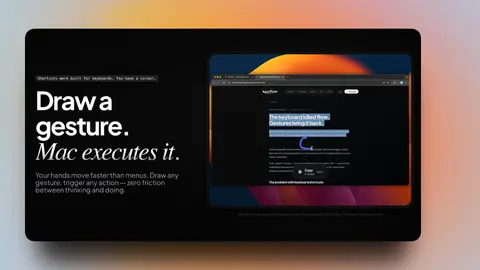
Mac Mouse Gestures: The Complete Beginner's Guide
Everything a Mac beginner needs to know about mouse gestures: what they are, how they work, what to automate first, and how to set them up in under ten minutes.
Curflow Blog8 min read
21 stories
Everything a Mac beginner needs to know about mouse gestures: what they are, how they work, what to automate first, and how to set them up in under ten minutes.
The Magic Mouse looks great and hurts to use. I replaced it with a cheap Logitech and drawn mouse gestures — and recovered every gesture I lost, plus ones Apple never offered.
When I had to use my Mac with one hand for six weeks, Sticky Keys and Voice Control weren't enough. Here's the one-handed workflow — trackball, gestures, and setup — that kept me shipping code.
There are only five Mac mouse gesture apps worth your time in 2026, and they don't compete — each owns a different trade-off. Here's the decision matrix that picks for you.
Per-app mouse gestures on macOS overload one drawn shape with context-dependent actions, so you memorize fewer strokes and trigger more actions without collisions.
macOS ships with roughly 15 built-in trackpad gestures — and no way to add more. There is no public API for custom trackpad gestures. To get gestures Apple didn't ship, you need a third-party app, and your options split by input device: BetterTouchTool for the trackpad, mouse-gesture apps like…
StrokeIt defined mouse gestures on Windows for over a decade — 80 gestures, 140 KB, free. It never came to macOS. Here is what exists instead, and how to replicate the same workflow on your Mac.
Two monitors, four desktops, thirty open tabs. Native macOS gives you keyboard shortcuts to navigate the mess — but none of them tell you where anything actually is. Mouse gestures solve the spatial problem behind the chaos.
After developing tendinitis from years of keyboard shortcuts, I tried ergonomic mice, voice control, and every posture fix. The single change that let me keep working was moving half my workflow to mouse gestures.
Keyboard shortcuts work fine for simple tasks. But if you use multiple monitors, manage 30+ tabs, or navigate desktops constantly, mouse gestures solve a different problem entirely.
After years of StrokesPlus on Windows, switching to Mac felt perfect — except for one thing: no mouse gestures. The constant mouse-to-keyboard switching was physically exhausting. Here's what changed when I got gestures back.
Browser gestures work until you switch apps. System gestures follow you everywhere. The philosophy behind tools that scale with your workflow.
Browser gesture extensions like Gesturefy, CrxMouse and Gestury work inside a single browser. The moment you switch to Finder, Mail or any Mac app, they stop. Here's what actually works everywhere.
Gesturefy is great inside Firefox. But the moment you switch to Chrome, Finder, or any native Mac app, your gestures disappear. Here's what actually works everywhere.
BetterTouchTool is the Photoshop of gestures. Curflow is Figma. One gives you 500 options. The other gives you the 10 you actually need, working from minute one.
If you came from Windows and used StrokesPlus, you know exactly what you are looking for on macOS. This is the guide to find it.
Not all Mac automation tools solve the same problem. Shortcuts for Apple workflows, Keyboard Maestro for complex macros, BTT for input control, Curflow for zero-friction gestures — and where Automator left off.
Keyboard shortcuts have a cognitive ceiling. Past a certain point, the tool that was supposed to save you effort starts costing more than it saves.
Showing 18 of 21 stories
Load more storiesGet the top AI news and tools straight to your inbox every week.
Weekly · AI news
Join 15,000+ AI enthusiasts